

Every Azure engineer knows the ritual. New laptop, new project, or just a new team you’ve joined — and before you write a single line of Bicep or run your first az command, you’re an hour deep into installing the Azure CLI, fighting a PATH variable, discovering your Bicep extension is out of date, and wondering why azd isn’t picking up your subscription. None of that is the actual work. It’s the toll you pay before the work can start.
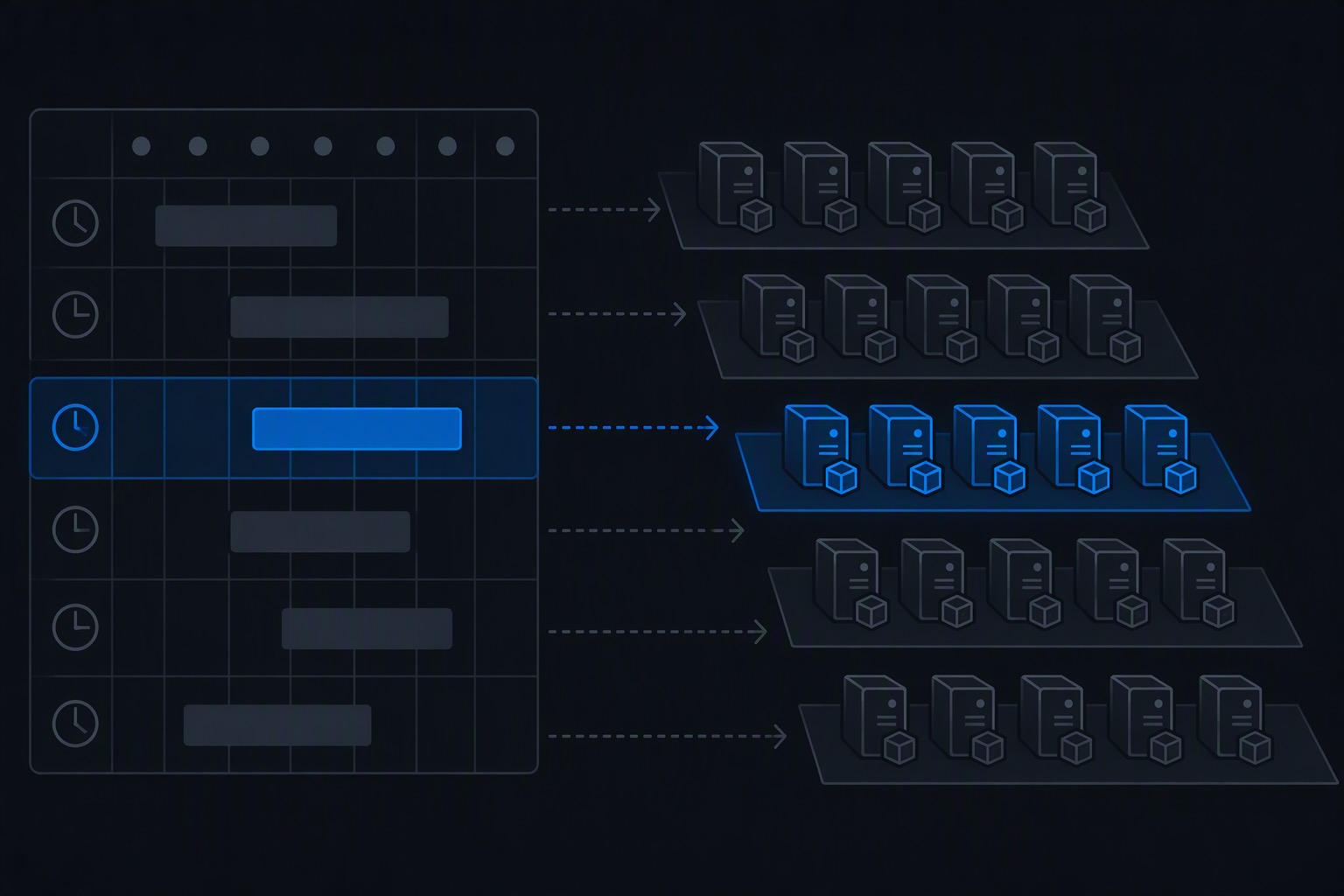
GitHub Codespaces exists to make that toll disappear. Instead of provisioning your environment by hand, you describe it once, in a file that lives in the repository, and every Codespace built from that repository shows up with the tools already there — correct versions, correct extensions, correct shell — for you and for everyone else on the team.
What a Codespace actually is
A Codespace is a containerized development environment running on a VM in the cloud, accessed through a browser-based or desktop VS Code instance (or, if you prefer, your local VS Code talking to a remote container). The configuration for that container lives in a single file: .devcontainer/devcontainer.json, committed alongside your code.
That file does three jobs. It picks a base image. It declares “features” — pre-packaged installers for common tools. And it tells VS Code which extensions to load automatically. Because the file is version-controlled, the environment becomes as reviewable and reproducible as the code itself. Onboard a new contractor, spin up a Codespace, and they’re looking at the exact same toolchain you are, without a Slack thread titled “can someone help me install Bicep.”
Wiring up the Azure toolchain
For Azure infrastructure work, there’s a fairly standard trio you want present on day one: the Azure CLI (with the Bicep tooling that rides along with it), the Azure Developer CLI (azd), and the VS Code extensions that make both usable. Here’s a devcontainer.json that covers it:
{
  "name": "Azure Infra Dev",
  "image": "mcr.microsoft.com/devcontainers/base:ubuntu",
  "features": {
    "ghcr.io/devcontainers/features/azure-cli:1": {
      "installBicep": true
    },
    "ghcr.io/azure/azure-dev/azd:latest": {},
    "ghcr.io/devcontainers/features/docker-in-docker:2": {},
    "ghcr.io/devcontainers/features/git:1": {}
  },
  "customizations": {
    "vscode": {
      "extensions": [
        "ms-azuretools.vscode-bicep",
        "ms-azuretools.vscode-azurefunctions",
        "ms-vscode.azure-account",
        "GitHub.copilot",
        "GitHub.copilot-chat"
      ]
    }
  }
}
A few things worth calling out:
The azure-cli feature with installBicep: true gets you both tools in one declaration, since Bicep ships as a CLI extension to az rather than a separate install. You don’t need to remember the az bicep install step — the feature handles it.
The azd feature pulls the Azure Developer CLI from its own dedicated feature rather than bundling it with the Azure CLI feature, since azd is a separate binary with its own release cadence. azd has moved fast lately: recent releases added local preflight validation that checks Bicep parameters before a deployment round-trip to Azure, and a remote build fallback that drops to local Docker or Podman if a remote Azure Container Registry build fails. None of that matters if the tool itself isn’t sitting there when you open the Codespace — which is exactly the problem the feature declaration solves.
docker-in-docker matters if anything in your workflow builds container images for Container Apps, AKS, or Functions — azd will often want to build and push an image as part of azd up, and that needs a working Docker daemon inside the container.
The Bicep extension for VS Code gives you IntelliSense, parameter validation, and the ability to right-click a .bicepfile and visualize or deploy it directly, instead of context-switching to the terminal for every iteration.
This is also a fork-and-adjust starting point rather than a fixed prescription — if your team is doing Terraform alongside Bicep, there’s a terraform feature too, and templates like the Azure-Samples azd-starter-bicep repo ship a devcontainer that installs infrastructure tooling by default specifically so it can be used to create cloud-hosted developer environments such as GitHub Codespaces.
Adding GitHub Copilot app modernization for migration work
If part of your remit is taking an existing application — especially something on older .NET or a legacy Java stack — and either upgrading it in place or moving it onto Azure, there’s a more specific extension worth including: GitHub Copilot app modernization (the successor to what many people still refer to by its old name, “migrate”). It’s a GitHub Copilot agent that helps you upgrade projects to newer versions of .NET and migrate .NET applications to Azure, guiding you through assessment, solution recommendations, code fixes, and validation, and a parallel extension exists for Java codebases.
The workflow is structured rather than a single magic button. When you start an upgrade, Copilot collects pre-initialization information — the target framework version, Git branching strategy, and whether you want it to run automatically or under your guidance — then runs an assessment, planning, and execution workflow, writing markdown files for each stage into the repository. That means the modernization plan itself becomes a reviewable artifact sitting in your repo, not something that happened silently in someone’s IDE.
To add it to your Codespace, extend the extensions array:
"extensions": [
  "ms-azuretools.vscode-bicep",
  "GitHub.copilot",
  "GitHub.copilot-chat",
  "ms-dotnettools.vscode-dotnet-modernize",
  "vscjava.migrate-java-to-azure"
]
Worth knowing going in: the .NET-to-Azure migration capability is the one piece in this space still in public preview, and the Java side has a narrower scope, currently limited to backend apps built with Maven or Gradle. It’s also a premium-request consumer of your Copilot plan rather than something that runs for free indefinitely, and it needs a live connection to Copilot’s cloud infrastructure — there’s no offline mode. None of that makes it less useful for a real migration project; it just means you scope the work with those constraints in mind rather than assuming it’s a fire-and-forget button.
Why this is more than convenience
It’s tempting to file all of this under “nice to have, saves a few minutes.” The bigger win shows up in three places that don’t fit neatly into a “time saved” line item.
Consistency across a team stops being a documentation problem. A wiki page titled “Dev Environment Setup” goes stale the week after someone updates it. A devcontainer.json doesn’t — it’s the actual configuration, checked by CI if you want it to be, and if it’s wrong, everyone’s Codespace is wrong in the same obvious way, which makes it easy to spot and fix in one place.
Onboarding compresses from days to minutes. This matters disproportionately for contractor engagements, client work, or short-lived project teams — exactly the kind of work that often comes with its own compliance and access constraints. Someone with repo access can have a working Bicep and azd environment before their VPN access even finishes provisioning.
The environment becomes disposable, which makes it safer to experiment in. Break something installing a competing version of a tool, or let a bicep build leave the container in a weird state — delete the Codespace and start a fresh one in under a minute. That changes the cost-benefit of trying something new during a deployment investigation; there’s no “now I have to rebuild my whole machine” tax for getting it wrong.
Running the same setup locally, without paying for Codespaces compute
Here’s the part that surprises people who’ve only used the GitHub.com “Create codespace” button: nothing about this setup actually requires GitHub’s hosted compute. A Codespace is a devcontainer.json being interpreted by an engine — GitHub just happens to be one engine, running on billed cloud VMs. VS Code’s own Dev Containers extension (ms-vscode-remote.remote-containers) reads the identical file and builds the identical container against your local Docker (or Podman) install instead.
That distinction matters for cost. GitHub Codespaces bills by core-hour of compute plus storage once you’re past the free monthly allowance — a 4-core machine runs in the neighborhood of $0.36/hour, which adds up fast for anyone working full days, every day, on infrastructure. Running the same .devcontainer/devcontainer.json locally costs nothing beyond electricity and whatever compute your own hardware already has, because there’s no metered cloud VM in the loop at all.
The mechanics are almost embarrassingly simple:
- Install the Dev Containers extension in your local VS Code.
- Have Docker (or Podman, with the right remote settings) running locally — this is the only real prerequisite, and if you’re already comfortable spinning up containers on a Hetzner box or testing things in a homelab, it’s not a new skill.
- Clone the repo as you normally would, with no GitHub involvement beyond
git clone. - Open it in VS Code. You’ll get a prompt — “Reopen in Container” — or you can trigger it manually via the command palette with Dev Containers: Reopen in Container.
VS Code then builds the exact same image, installs the exact same azure-cli, bicep, and azd features, and loads the exact same extensions defined in the devcontainer.json from earlier in this post. The Azure CLI session you authenticate inside that container, the Bicep IntelliSense, the modernization extension — all of it behaves identically, because it’s the same container definition either way. The only thing that changes is who’s running the Docker daemon: GitHub’s infrastructure, or yours.
There are real tradeoffs, and it’s worth being honest about them rather than pretending local is strictly better:
You lose the cloud benefits that justify Codespaces’ price tag in the first place. No browser-based access from a machine that doesn’t have Docker installed, no spinning up a fresh environment from your phone or a borrowed laptop, and your local machine’s CPU and RAM are now the ceiling — there’s no bursting to a bigger cloud VM for a heavy build.
Prebuilds, GitHub-native secrets injection, and PR-linked ephemeral environments are Codespaces-specific conveniences that a local Dev Container doesn’t replicate on its own. If your workflow leans on reviewers getting a live environment per pull request, that’s a Codespaces feature, not a Dev Container Spec feature.
Where it clearly wins is exactly the profile of someone doing frequent, long-running Azure infrastructure work from a machine they already control: no recurring compute bill, no dependency on GitHub’s availability, full access to whatever’s already on your network (including, say, talking to an internal OPNsense-fronted resource that a cloud-hosted Codespace would need a tunnel to reach), and — because the container is just Docker — the same setup is portable to any other devcontainer-compatible tool if you ever want to move off VS Code entirely.
A sensible default for a lot of teams: use Codespaces for fast onboarding, contractor access, and PR review environments where the convenience justifies the metered cost, and default to local Dev Containers for your own day-to-day work, since you’re the one running it for eight hours a day, every day. Same file, same tools, you just choose which engine reads it.
A reasonable starting point
If you’re setting this up for the first time, the lowest-friction path is to not start from a blank file. Clone a known-good template — the Azure-Samples azd templates gallery has several with working devcontainer configs already wired up for Bicep and azd — and edit from there. Add the modernization extensions only if migration work is actually on your plate; there’s no benefit to carrying tooling you won’t touch.
The pattern generalizes well beyond Azure, too. Once a team has one working devcontainer.json, extending it for a new tool is usually a one-line feature addition rather than a research project. The setup tax, once paid down, mostly stays paid.
Discover more from ksharp
Subscribe to get the latest posts sent to your email.




One Reply to “Codespaces and the Disappearing Dev Environment: Setting Up Azure…”