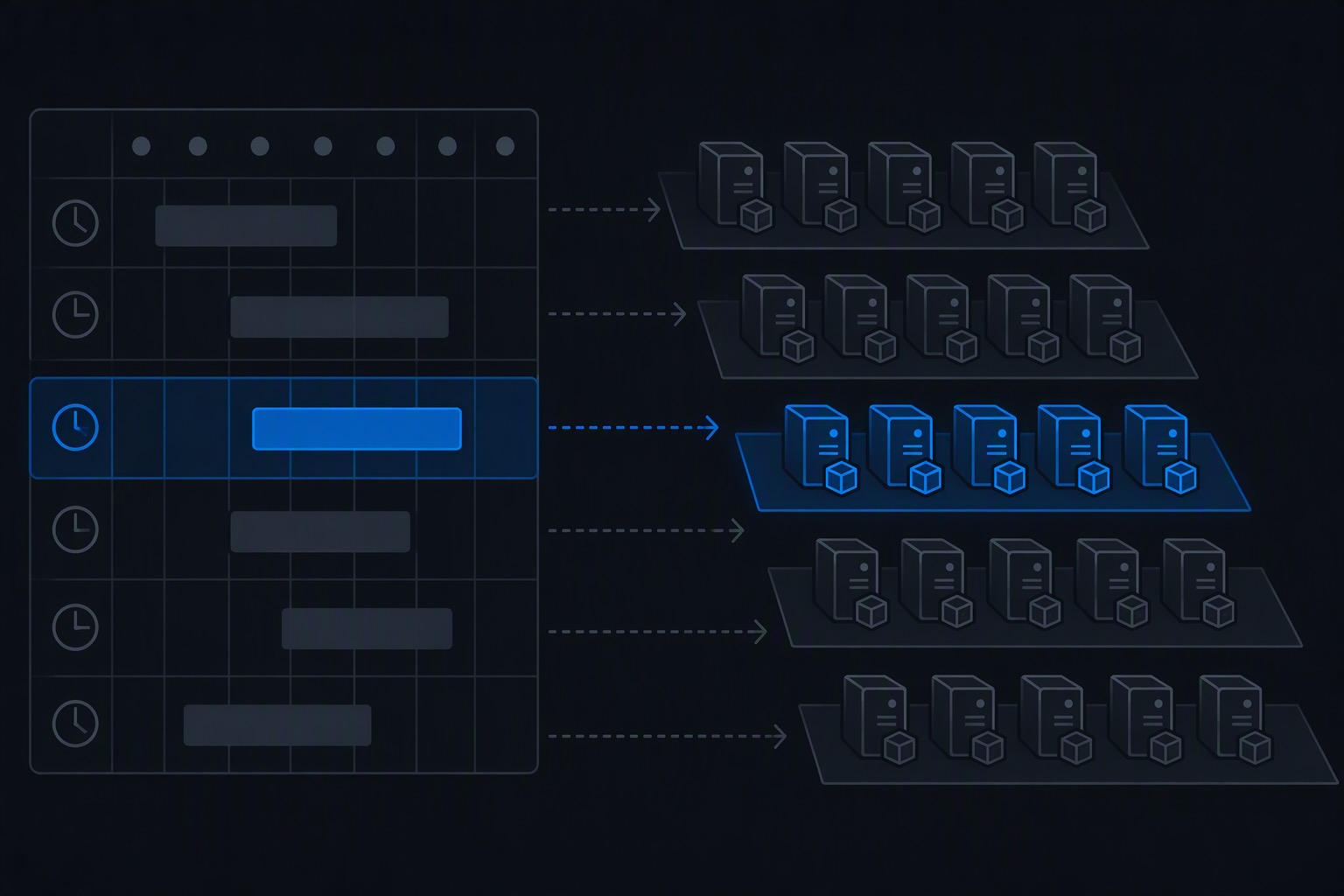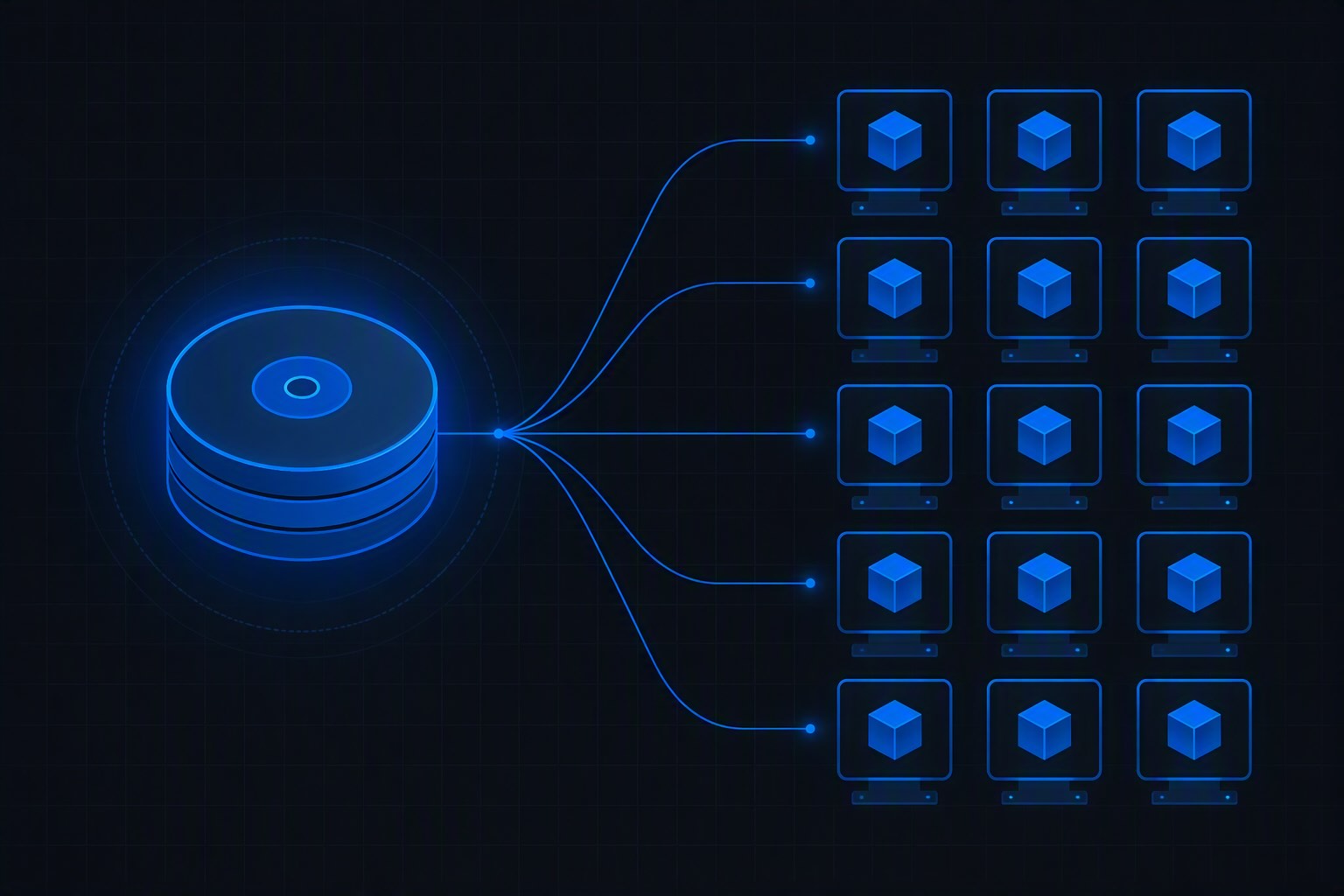
In the last post, I covered how GitHub Codespaces and the Dev Container spec eliminate the “new machine, new project, an hour lost to installs” problem by letting you describe a development environment once and have it built consistently, in the cloud or locally via Docker.
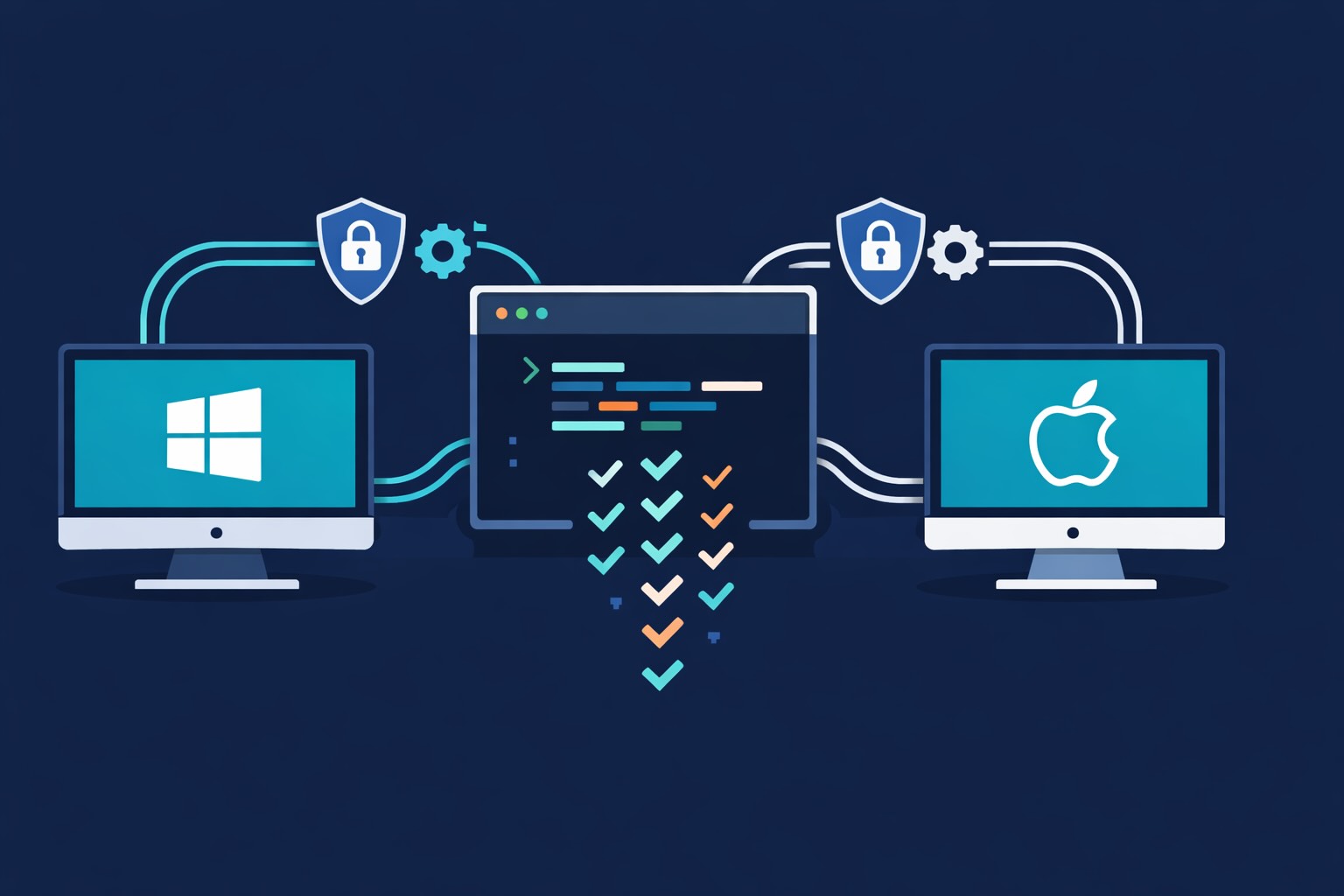
There’s a layer underneath all of that worth pulling apart on its own: sometimes you don’t want a container at all. You want your actual workstation — the physical or virtual machine you log into every day — set up correctly, once, without opening a single installer wizard or clicking through a single “Next” button. That’s a different problem from reproducible dev environments, and it has a much older, much simpler solution: native package managers. winget on Windows, Homebrew on macOS. Point a script at a list of package IDs, walk away, come back to a fully tooled machine.
The case for “just install it, don’t containerize it”
Dev Containers are the right tool when you want per-project isolation — different Node versions for different repos, a clean slate for client engagements, the ability to nuke and rebuild without touching your host OS. But a lot of the tooling an Azure engineer needs — the CLI, Bicep, .NET SDKs, kubectl, Git, VS Code itself — isn’t project-specific at all. It’s workstation-specific. You want it there once, system-wide, the moment you open a terminal, regardless of which repo you happen to be in.
That’s exactly the gap that a package-manager-driven provisioning script fills. No container runtime, no devcontainer.json, no image build step — just a list of package identifiers and a loop.
A real starting point: the new-workstation scripts
I keep a small repository, kpantos/new-workstation, with exactly this in mind: two scripts, one per OS, that turn a freshly imaged machine into a working Azure development box in one run.
macOS — factory-workstation-mac.sh
The Mac script leans on Homebrew formulas and casks. The shape of it is a small helper pattern wrapped around brew install:
install_formula() {
  local package="$1"
  local label="${2:-$1}"
  log_install "$label"
  brew install "$package"
  log_result "$label" "$?"
}

install_cask() {
  local package="$1"
  local label="${2:-$1}"
  log_install "$label"
  brew install --cask "$package"
  log_result "$label" "$?"
}
Two thin wrappers, each logging what it’s about to install and whether it succeeded, mean the script reads as a flat list of intent rather than forty repeated brew install lines with no feedback. The actual install list covers the full Azure toolchain in one pass: the .NET SDKs (8 and 9, plus the general SDK cask), Python, Node, PowerShell, the Azure CLI, Bicep (via its own tap), azd, the Azure Functions Core Tools, kubectl, Podman, Git, the GitHub CLI, and the Copilot CLI — followed by the GUI layer: Docker Desktop, VS Code, Azure Storage Explorer, Insomnia, Lens, pgAdmin, GitHub Desktop, and the Windows App client for remote desktop sessions back into anything still running on Windows infrastructure.
One detail worth calling out because it trips people up: Bicep isn’t a plain formula install on macOS. The script taps Microsoft’s own cask repository first —
brew tap azure/bicep
brew trust azure/bicep
install_formula bicep "bicep"
— because Bicep’s CLI binary is distributed through that tap rather than through Homebrew’s main core repository. Skip the tap and brew install bicep will simply fail to find the package.
Windows — factory-workstation.ps1
The PowerShell side is more verbose by design — winget doesn’t have the same single-wrapper convenience as the bash script’s helper functions, so each install is its own three-line block: announce, install, report:
Write-Output Install Microsoft.AzureCLI
winget install --id=Microsoft.AzureCLI --accept-package-agreements --accept-source-agreements
if ($LASTEXITCODE -eq 0) { Write-Output Microsoft.AzureCLI installed successfully.} else { Write-Output Error installing Microsoft.AzureCLI!!! }
Repeated for every package, this becomes a script that’s long on lines but trivial to read, edit, or trim. The package list mirrors the Mac side with Windows-specific additions: the full run of .NET SDKs going all the way back to 3.1 (useful if you’re maintaining anything that hasn’t been modernized yet) plus the .NET Framework 4 Developer Pack for legacy projects, Windows Terminal, PowerShell, Azure CLI, Bicep, azd, Azure Data Studio, Azure Functions Core Tools, kubectl, Podman, Git, the GitHub CLI, Docker Desktop, VS Code, and a heavier set of GUI tooling than the Mac side — Visual Studio Enterprise, the Azure Storage Emulator and Cosmos DB Emulator for fully offline local development, Storage Explorer, Insomnia, Lens, pgAdmin, the Remote Desktop client, and GitHub Desktop.
The two consistent flags on every winget call — --accept-package-agreements --accept-source-agreements — matter more than they look like they should: without them, winget stops and waits for an interactive yes/no on every single package, which defeats the entire point of running this unattended.
Both scripts need to run elevated
This is easy to forget and it’s the single most common reason a fresh run dies partway through with cryptic failures rather than a clean error.
On Windows, several packages here install machine-wide, write to Program Files, register system-level components, or touch the registry — Visual Studio Enterprise, Docker Desktop, and the .NET Framework Developer Pack all fall into this bucket. Run factory-workstation.ps1 from PowerShell opened as Administrator, otherwise winget will either silently fall back to a user-scope install for some packages while flatly failing on others, and you’ll only find out which is which by reading the per-package success/failure lines the script prints.
On macOS, Homebrew itself deliberately refuses to run as root for formula installs — it expects to own its prefix as the logged-in user. What does need elevation is the underlying sudo prompt Homebrew triggers internally for specific steps: setting permissions on /opt/homebrew (or /usr/local on Intel Macs) during first install, and certain cask installs that place files outside the user’s home directory or register a .app bundle system-wide (Docker Desktop is the obvious one in this list). In practice this means running factory-workstation-mac.sh as your normal user, but being ready to enter your password when Homebrew asks for it mid-script — don’t walk away assuming the whole run is unattended, or it’ll sit stalled at a sudo prompt with no obvious signal in the output why nothing is happening.
Why this shape, specifically
Both scripts follow the same small discipline: announce what’s about to happen, run the install, check the exit code, print a clear success or failure line, and move on to the next package regardless of whether the previous one succeeded. That last part is deliberate. A single failed package — say, a cask that’s temporarily pulled, or a winget ID that changed — shouldn’t take down the other thirty installs behind it. You get a scrollback at the end that tells you exactly what to go back and fix by hand, instead of a script that dies on line four and leaves you guessing what’s missing.
The part that actually matters in a corporate environment: firewall rules
Here’s where a script like this stops being a five-minute convenience and starts being an actual blocker, and it’s the part most “just run this script” guides skip entirely. Both winget and Homebrew need to reach a specific, and not always obvious, set of domains — and in a locked-down corporate network with an egress allowlist (which describes most regulated environments, and very likely the kind of client environment a consulting engagement drops you into), those domains have to be explicitly opened before either script will get past the first package.
What winget needs
Modern winget (anything reasonably current — the old winget.azureedge.net source endpoint was retired and now fails outright) resolves its package source through:
cdn.winget.microsoft.com— the actual winget package source and index. If only one domain gets allowlisted, it has to be this one, orwinget source updatefails before it even gets to looking up a package.storeedgefd.dsx.mp.microsoft.com— backs themsstoresource, which winget queries alongsidewingeteven when you’re not explicitly installing a Store app.aka.ms— Microsoft’s link shortener, used as a redirector by a surprising number of installer manifests.
Beyond the source lookup itself, the actual installer binaries for each package come from wherever that vendor hosts them — and this is the part that can’t be reduced to one tidy list, because it’s per-package. Microsoft’s own tools (Azure CLI, Bicep, azd, VS Code, .NET SDKs) mostly resolve through *.azureedge.net, *.blob.core.windows.net, or direct download.microsoft.com/download.visualstudio.microsoft.com links. Third-party tools redirect wherever their vendor hosts releases — GitHub Releases (github.com, *.githubusercontent.com) is extremely common, since gh, git, and a long tail of devtools all ship that way.
The practical approach for a regulated environment: allowlist the two core winget domains plus aka.ms first, run the script once with verbose logging (winget install ... --verbose-logs), and read the failures — each one will name the exact host it couldn’t reach. Add those, rerun. It converges in two or three passes rather than requiring a perfect list upfront.
What Homebrew needs
Homebrew is a shorter, better-documented list, because nearly everything flows through two domains:
formulae.brew.sh— formula and cask metadata, the JSON API everybrew installconsults first to resolve a package name to a download location.ghcr.io— GitHub’s container registry, which is also where Homebrew’s pre-built binary “bottles” live. Mostbrew installcalls for common formulas resolve here rather than building from source, so this domain carries the bulk of the actual download traffic.
Beyond those two, github.com and *.githubusercontent.com cover tap updates and any cask whose artifact is hosted directly on GitHub Releases rather than ghcr.io. And because cask downloads ultimately come from each vendor’s own servers — Docker Desktop from Docker’s CDN, VS Code from Microsoft’s, Insomnia from its own release host — a fully cask-heavy install list (which this script’s is) will surface a handful of additional vendor domains the first time it runs. Same approach as winget: allowlist the four core domains, run it, and add whatever specific vendor host shows up in the failure output.
Why this is worth doing properly rather than just opening egress wholesale
In a regulated environment, “just allow all outbound HTTPS for this one box” is usually not an option, and shouldn’t be — it defeats the actual purpose of the control. The alternative some teams reach for instead is routing everything through a TLS-inspecting proxy and allowlisting by domain at the proxy layer, which works for both tools cleanly since neither winget nor Homebrew does certificate pinning that would break under inspection (this differs from, say, the Microsoft Store proper, which does pin certificates and can break under SSL inspection). Building the allowlist once, documenting it alongside the provisioning script in the same repository, and keeping both in version control means the next person — or the next audit — has an answer that isn’t “we opened the firewall and hoped.”
Where this fits next to Codespaces and Dev Containers
These aren’t competing approaches so much as different layers of the same problem. A provisioning script like this one is for the machine itself — the durable, system-wide tools you want present no matter what you’re working on that day. Dev Containers, whether run locally or through Codespaces, are for the project — the specific, disposable, per-repo environment that shouldn’t leak into your host OS at all.
In practice the two compose well: run a script like factory-workstation-mac.sh or factory-workstation.ps1 once when you image a new machine, and let that put Docker, VS Code, Git, and the Azure CLI in place — the exact prerequisites a Dev Container needs to exist at all. Everything after that, project by project, is the container’s job, not the host’s.
Discover more from ksharp
Subscribe to get the latest posts sent to your email.