The golden images post left off with a versioned, validated, agent-equipped image sitting in a Compute Gallery, pinned by whatever consumes it. That’s the right place to stop that post — but it leaves the actual application unaddressed. The image has your monitoring agent, your CA certificates, your hardening baseline. It almost certainly doesn’t have your application, at least not the version that shipped an hour ago. Baking every app release into the image and running it through the full AIB or hand-rolled pipeline from that post would work, but it turns every deploy into an image build, and that’s a heavier and slower loop than most application teams will tolerate.
So the question this post picks up is the one platform teams hit immediately after solving the image problem: given a golden image already sitting in the gallery, how do you get application code onto the VMSS instances built from it, automatically, from a GitHub Actions pipeline, without reintroducing the drift and manual-SSH problems the golden image was supposed to eliminate in the first place?
The options, at a glance
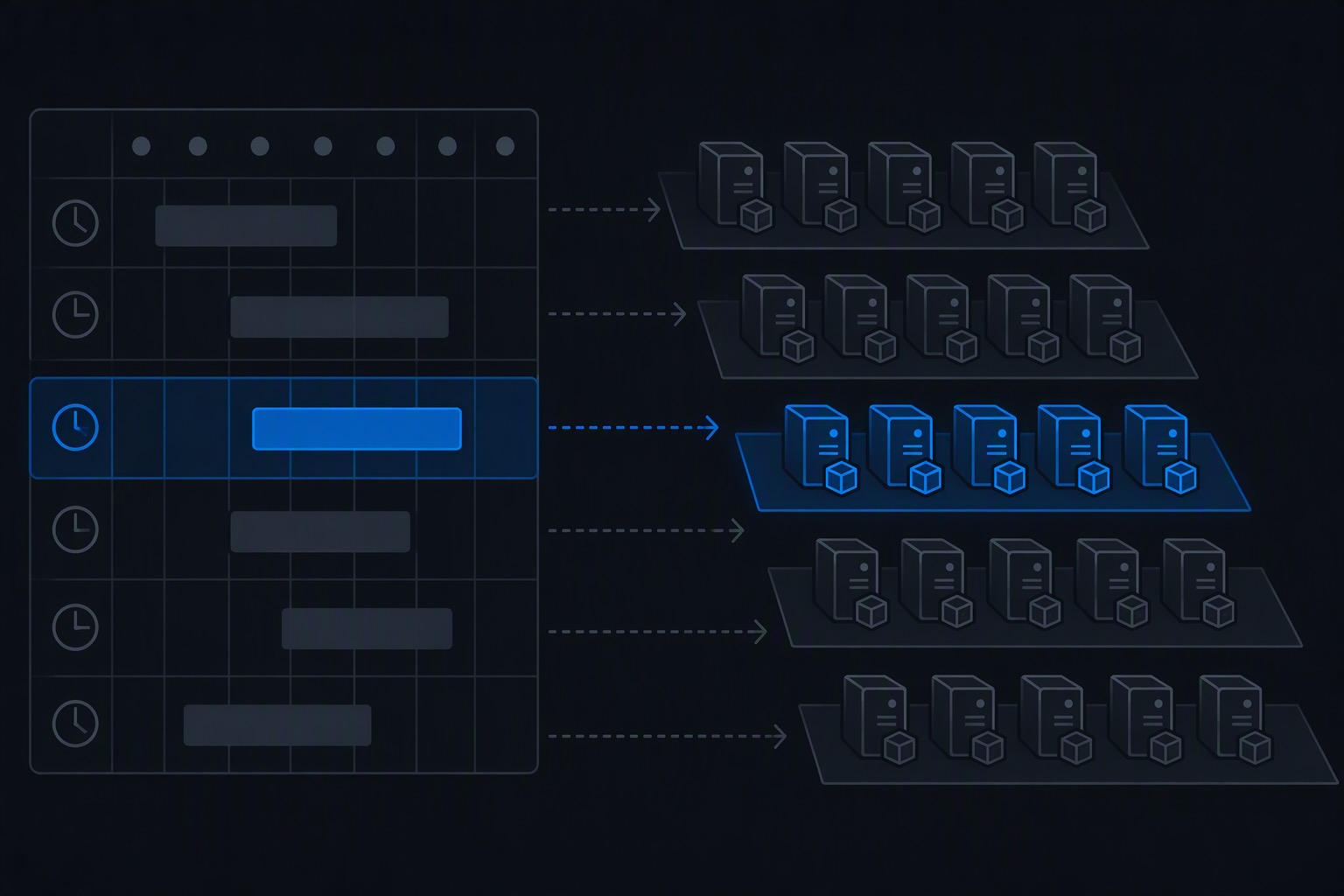
There are four broadly different ways to get application code running on VMSS instances, and they sit on a spectrum from “app is part of the image” to “app is a separate, independently versioned artifact.”
1. Bake the application into the image itself. Extend the same AIB template or hand-rolled pipeline from the golden images post with an additional customize step that installs the application, then publish a new image version and roll it out. The application and the OS/agent baseline share one version number and one build pipeline.
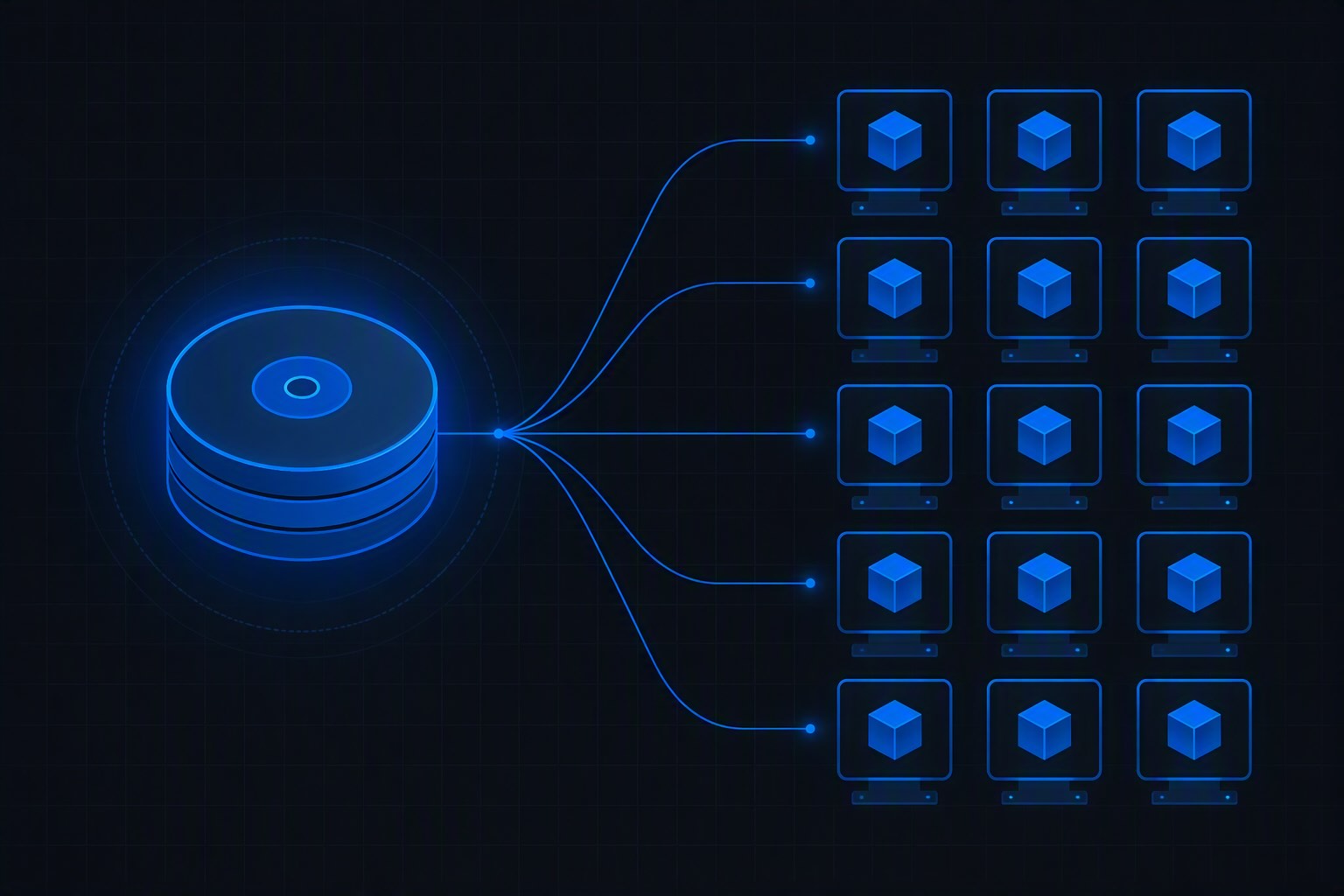
2. Azure VM Applications (Gallery Application Versions). A resource type inside the same Azure Compute Gallery that already holds your image, purpose-built to decouple application deployment from the base image. You package the app once, publish it as a versioned VM Application, and attach it to the VMSS’s applicationProfile — separate from and independently versioned from the OS image itself.
3. Custom Script Extension (CSE), triggered per deploy. The extension downloads and runs a script against every instance — install a new build, restart the service — independent of any gallery construct at all. This is the oldest, simplest option and the one most teams already have some version of.
4. Blue/green via a parallel scale set. Deploy a second VMSS running the new application version, register it behind the same Load Balancer or Application Gateway backend pool, shift traffic, then decommission the old one. This sidesteps in-place upgrade risk entirely at the cost of running double capacity briefly and more moving infrastructure.
Comparing them
| Baked into image | VM Applications | Custom Script Extension | Blue/green scale set | |
|---|---|---|---|---|
| App/OS coupling | Same version, same pipeline | Fully decoupled | Decoupled, but no first-class versioning | Decoupled |
| Deploy speed | Slow — full image build per release | Fast — package + reference update | Fast — script re-run | Moderate — new infra stands up |
| Rollback | Point image version back, roll instances | Point applicationProfile back to prior version | Re-run script with prior artifact | Shift traffic back to old scale set |
| Drift risk | Lowest — everything is in one artifact | Low — versioned and Azure-tracked | Real — depends on script idempotency | Low, per environment |
| Native versioning/inventory | Image version in the gallery | Gallery Application version, queryable via API | None — you build your own tracking | Scale set name/tag per release |
| Works with automatic OS upgrade | Yes — this is the OS upgrade | Yes — reapplied on reimage automatically | Only if extension is set to reapply post-reimage | N/A |
| Blast radius of a bad deploy | Full rolling upgrade, gated by health extension | Per-instance, gated by health extension | Per-instance, gated by health extension | Zero — new scale set, traffic not yet shifted |
| Tooling maturity | High — same pipeline as image builds | Moderate — newer, Azure-native, less community tooling | Very high — the oldest, most documented path | High conceptually, more custom wiring |
| Best fit | App and OS truly change together (e.g., a runtime baked at the OS level) | Application released independently of OS, need auditable app inventory across the fleet | Quick to stand up, teams already comfortable with scripts | Zero-downtime requirement, or a release too risky for in-place upgrade |
The honest read: baking the app into the image is the right call only when the application and the OS genuinely change together — a language runtime or driver version pinned to a specific app release, for instance. For the much more common case — an application team ships several times a week while the base image is rebuilt monthly — that pattern turns image builds into the bottleneck for every app release. VM Applications is the option Microsoft built specifically to solve that mismatch, and it’s the one this post builds out in full.
The technical artifact: deploying a sample app via VM Applications
The example below deploys a small sample web application onto an existing VMSS that was built from the golden image in the earlier post — same gallery, same resource group conventions.
Step 1: Define the VM Application once
This is a one-time setup step, not something the pipeline repeats on every run. It creates the application definition inside the same Compute Gallery your images already live in.
az sig gallery-application create \
  --resource-group rg-platform-images \
  --gallery-name galPlatform \
  --gallery-application-name sample-webapp \
  --os-type Linux \
--location westeuropeStep 2: The deploy pipeline — package, publish, and roll out a new version
Every push to main packages the application, publishes it as a new Gallery Application version, points the VMSS at that version, and rolls it out to running instances.
name: Deploy sample app to VMSS

on:
  push:
    branches: [main]

permissions:
  id-token: write   # OIDC federated credential — no stored secrets
  contents: read

env:
  RG: rg-platform-apps
  GALLERY: galPlatform
  APP_DEF: sample-webapp
  VMSS_NAME: vmss-sample-webapp
  STORAGE_ACCOUNT: stplatformartifacts
  CONTAINER: app-packages

jobs:
  deploy:
    runs-on: ubuntu-latest
    steps:
      - uses: actions/checkout@v4

      - uses: azure/login@v2
        with:
          client-id: ${{ secrets.AZURE_CLIENT_ID }}
          tenant-id: ${{ secrets.AZURE_TENANT_ID }}
          subscription-id: ${{ secrets.AZURE_SUBSCRIPTION_ID }}

      - name: Build application package
        run: |
          # Whatever your build actually produces — this example assumes
          # a self-contained tarball plus an install script
          tar czf sample-webapp.tar.gz ./src ./install.sh ./remove.sh

      - name: Compute version from run number
        id: version
        run: echo "version=1.0.${{ github.run_number }}" >> "$GITHUB_OUTPUT"

      - name: Upload package to blob storage
        run: |
          az storage blob upload \
            --account-name $STORAGE_ACCOUNT \
            --container-name $CONTAINER \
            --name sample-webapp-${{ steps.version.outputs.version }}.tar.gz \
            --file sample-webapp.tar.gz \
            --auth-mode login

      - name: Publish new VM Application version
        run: |
          BLOB_URL=$(az storage blob url \
            --account-name $STORAGE_ACCOUNT \
            --container-name $CONTAINER \
            --name sample-webapp-${{ steps.version.outputs.version }}.tar.gz \
            --auth-mode login -o tsv)

          az sig gallery-application-version create \
            --resource-group $RG \
            --gallery-name $GALLERY \
            --gallery-application-name $APP_DEF \
            --gallery-application-version-name ${{ steps.version.outputs.version }} \
            --package-file-link "$BLOB_URL" \
            --install-command "bash install.sh" \
            --remove-command "bash remove.sh" \
            --update-command "bash install.sh" \
            --target-regions westeurope=1 northeurope=1

      - name: Point the VMSS at the new application version
        run: |
          az vmss application set \
            --resource-group $RG \
            --name $VMSS_NAME \
            --app-version-ids "/subscriptions/${{ secrets.AZURE_SUBSCRIPTION_ID }}/resourceGroups/$RG/providers/Microsoft.Compute/galleries/$GALLERY/applications/$APP_DEF/versions/${{ steps.version.outputs.version }}"

      - name: Roll the new version out to running instances
        run: |
          az vmss update-instances \
            --resource-group $RG \
            --name $VMSS_NAME \
            --instance-ids "*"

      - name: Confirm rollout status
        run: |
          az vmss list-instances \
            --resource-group $RG \
            --name $VMSS_NAME \
            --query "[].{InstanceId:instanceId, LatestModel:latestModelApplied, State:provisioningState}" \
-o tableinstall.sh is the part that would previously have lived in a Custom Script Extension payload — the difference now is Azure tracks it as a versioned, inventoried application rather than an opaque script blob:
#!/usr/bin/env bash
set -euo pipefail

APP_DIR=/opt/sample-webapp
mkdir -p "$APP_DIR"
cp -r ./src/* "$APP_DIR"

# Systemd unit, idempotent — safe to re-run on update
cat > /etc/systemd/system/sample-webapp.service <<'EOF'
[Unit]
Description=Sample web application
After=network.target

[Service]
ExecStart=/opt/sample-webapp/start.sh
Restart=on-failure
User=www-data

[Install]
WantedBy=multi-user.target
EOF

systemctl daemon-reload
systemctl enable sample-webapp
systemctl restart sample-webappGating the rollout with the Application Health Extension
None of the above protects you from rolling a broken build across every instance at once. The Application Health Extension closes that gap by giving the scale set an application-level signal, independent of the load balancer probe, that a rolling upgrade can pause on:
az vmss extension set \
  --resource-group rg-platform-apps \
  --vmss-name vmss-sample-webapp \
  --name ApplicationHealthLinux \
  --publisher Microsoft.ManagedServices \
  --version 2.0 \
--settings '{"protocol": "http", "port": 8080, "requestPath": "/health"}'With the health extension in place and the scale set’s upgrade policy set to Rolling, a bad application version fails health checks on the first batch of instances and the rollout halts there rather than reimaging the whole fleet — the same protection the golden images post relied on for OS-level validation, now doing the equivalent job at the application layer.
Where the Custom Script Extension still wins
VM Applications is the better default, but it’s worth being honest about where the older CSE pattern still holds up: teams with genuinely simple deploy needs — one script, no meaningful versioning requirement, no cross-fleet inventory question anyone’s asking — get very little extra value from standing up a Gallery Application definition, uploading to blob storage, and managing version names, versus just re-running az vmss extension set with an updated script reference. The tradeoff is that CSE gives you none of the built-in version inventory, and idempotency is entirely your own discipline to enforce, as the automatic OS upgrade case makes clear — anything installed by a CSE gets wiped on reimage and has to reapply cleanly every time, with no framework help.
Flexible Orchestration Mode: the alternative path worth knowing about
Everything above assumes Uniform orchestration mode — the traditional VMSS model where instances are exposed through the scale-set VM API rather than the standard Azure VM API. Since November 2023, scale sets created via CLI or PowerShell without an explicit orchestration mode default to Flexible instead, and Microsoft’s own guidance is now direct about it: Flexible orchestration is recommended for new workloads.
The practical difference that matters for deployment automation: Flexible-mode instances are ordinary standalone Azure VM resources under the hood, not scale-set child objects. That means each instance gets the standard IaaS VM API — Azure Resource Manager tagging, per-instance RBAC, Azure Backup, Azure Site Recovery, and standard az vm commands — none of which apply cleanly to a Uniform-mode instance. It also means a single scale set can mix VM sizes, mix Spot and regular pricing instances, and even have existing standalone VMs attached to it, none of which Uniform mode supports.
For the deployment pipeline specifically, this opens up a targeting model Uniform mode doesn’t: because instances are addressable as standard VMs, a GitHub Actions job can pull the current instance list straight from Resource Graph — the same query pattern from the earlier post on Resource Graph as agent infrastructure — and then run a canary rollout against a named subset of instances using az vm run-command invoke, rather than being limited to the all-or-nothing batching that the scale-set upgrade API imposes. Gallery Applications still work exactly the same way in Flexible mode — the applicationProfile construct isn’t orchestration-mode-specific — so nothing above needs to be rebuilt if you’re on Flexible; you simply gain finer-grained, standard-API control alongside it.
The tradeoff is real, though: Flexible mode gives up a handful of Uniform-only conveniences — single placement group behavior and a few Ultra Disk configuration options aren’t supported — and the mode can’t be changed after creation, so it’s a decision made once at scale-set creation time, not something to switch into later without recreating the resource.
The practical recommendation
Default to VM Applications for anything that releases on its own cadence, separate from the base image. Keep the image build pipeline from the earlier post focused on the OS, agents, and hardening baseline it was designed for, and let this pipeline own the application layer entirely — versioned, inventoried, and rollback-capable independently of any image rebuild. Put the Application Health Extension in front of every rollout regardless of which of the four options you’re using; an application version that “deploys successfully” but fails its own health check is exactly as dangerous as the missing-security-agent image the golden images post warned about, for the same reason — it ships anyway if nothing is watching.
And when you’re standing up a new scale set rather than deploying to an existing one, treat the orchestration mode choice with the weight it deserves. It’s the one decision in this entire pipeline that you don’t get to revisit later.
Discover more from ksharp
Subscribe to get the latest posts sent to your email.