Patch management has a way of looking solved right up until you actually have to design it at landing zone scale. Every VM needs updates, everyone agrees on that, and then the questions start: who owns the schedule, what happens when Patch Tuesday lands the same week as your quarter-end freeze, how do you patch a tier without taking half its capacity offline at once, and how do you prove — not just believe — that every VM in the environment is actually enrolled. The Cloud Adoption Framework and the Well-Architected Framework both have real answers to this, and they converge on the same tool: Azure Update Manager. What’s worth walking through is how the principles in each framework turn into an actual configuration, because the gap between “use Update Manager” and a design that survives a real production incident is bigger than the one-line recommendation suggests.
Microsoft’s recommended approach to patch management in Azure comes from the Cloud Adoption Framework (CAF), the Well-Architected Framework (WAF) and Azure security best practices. They agree on one idea: patch automatically, driven by policy, in stages, and keep checking compliance.
1. Reduce what you have to patch
- Where you can, use PaaS or serverless services such as App Service, Azure SQL, AKS node auto-upgrade and Functions, so Microsoft patches the underlying operating system.
- For the IaaS resources you keep, decide who owns patching (a central platform team or the workload team). CAF’s “Ready your cloud operations” guidance says to set this out in a clear responsibility matrix.
2. Automate patching from the start
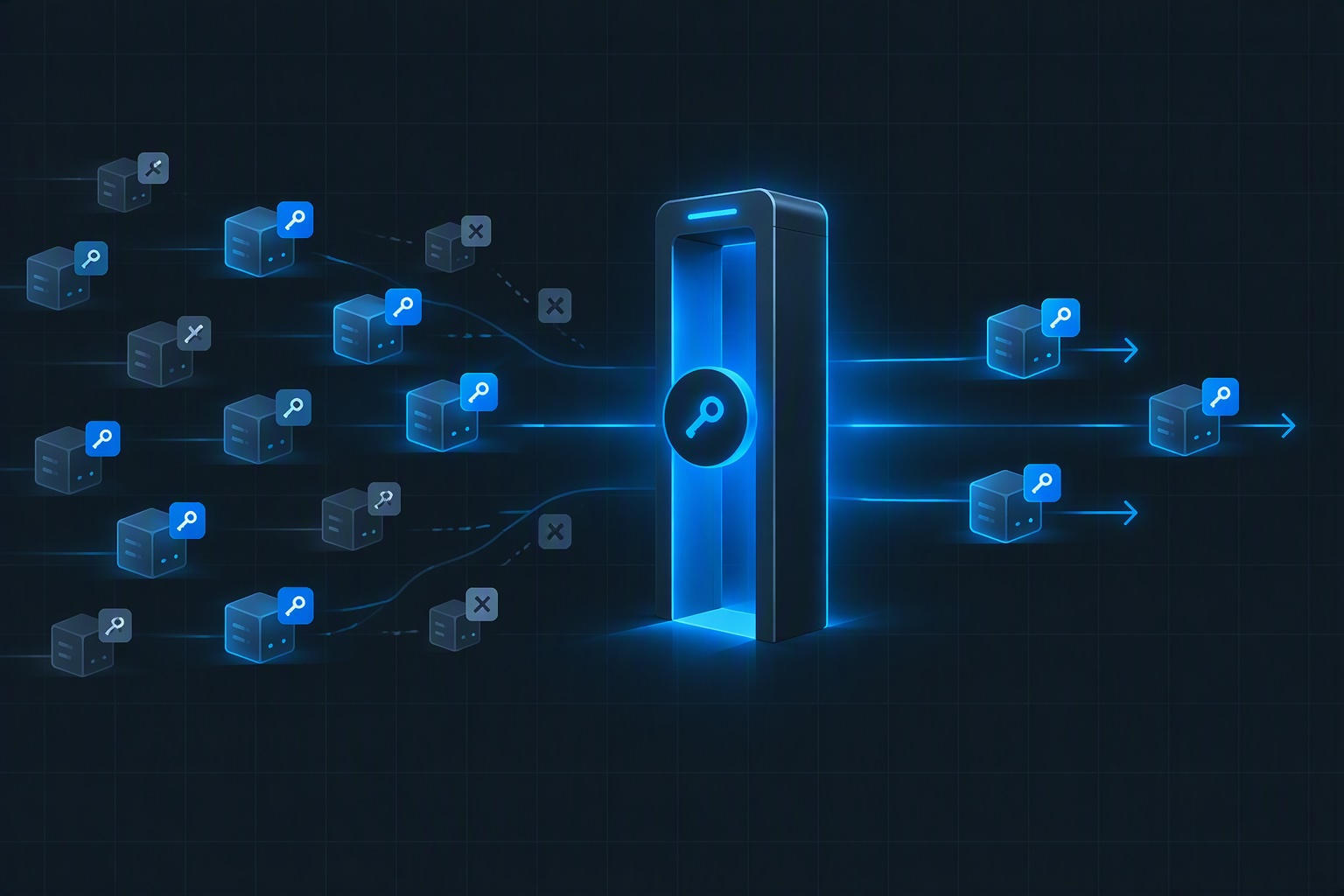
- CAF’s “principle of integrity” asks for automated patch management that enrolls new systems automatically and applies your patching policies.
- In an Azure landing zone, assign Azure Policy at the management-group level:
- Turn on periodic assessment, so machines are scanned for missing updates about every 24 hours.
- Set the patch orchestration mode to Customer Managed Schedules or AutomaticByPlatform.
- Attach machines to maintenance configurations, using dynamic scopes based on tags, resource groups or subscriptions.
- Include Azure Arc servers so on-premises and other-cloud machines are patched the same way.
3. Choose the right orchestration method
- Azure Update Manager with maintenance configurations (recommended for most enterprises):
- Scheduled patching windows.
- Filtering by update classification and specific KB numbers.
- Pre- and post-maintenance events (for example snapshots or draining traffic), triggered through Event Grid.
- Automatic VM guest patching (AutoByPlatform):
- Critical and security patches are applied during off-peak hours.
- Rollout follows availability-set and zone boundaries.
- Virtual Machine Scale Sets:
- Use automatic OS image upgrades or rolling upgrades with health probes.
- Better still, run immutable infrastructure: rebuild images with Azure Image Builder or Compute Gallery instead of patching machines in place.
4. Roll out in safe stages
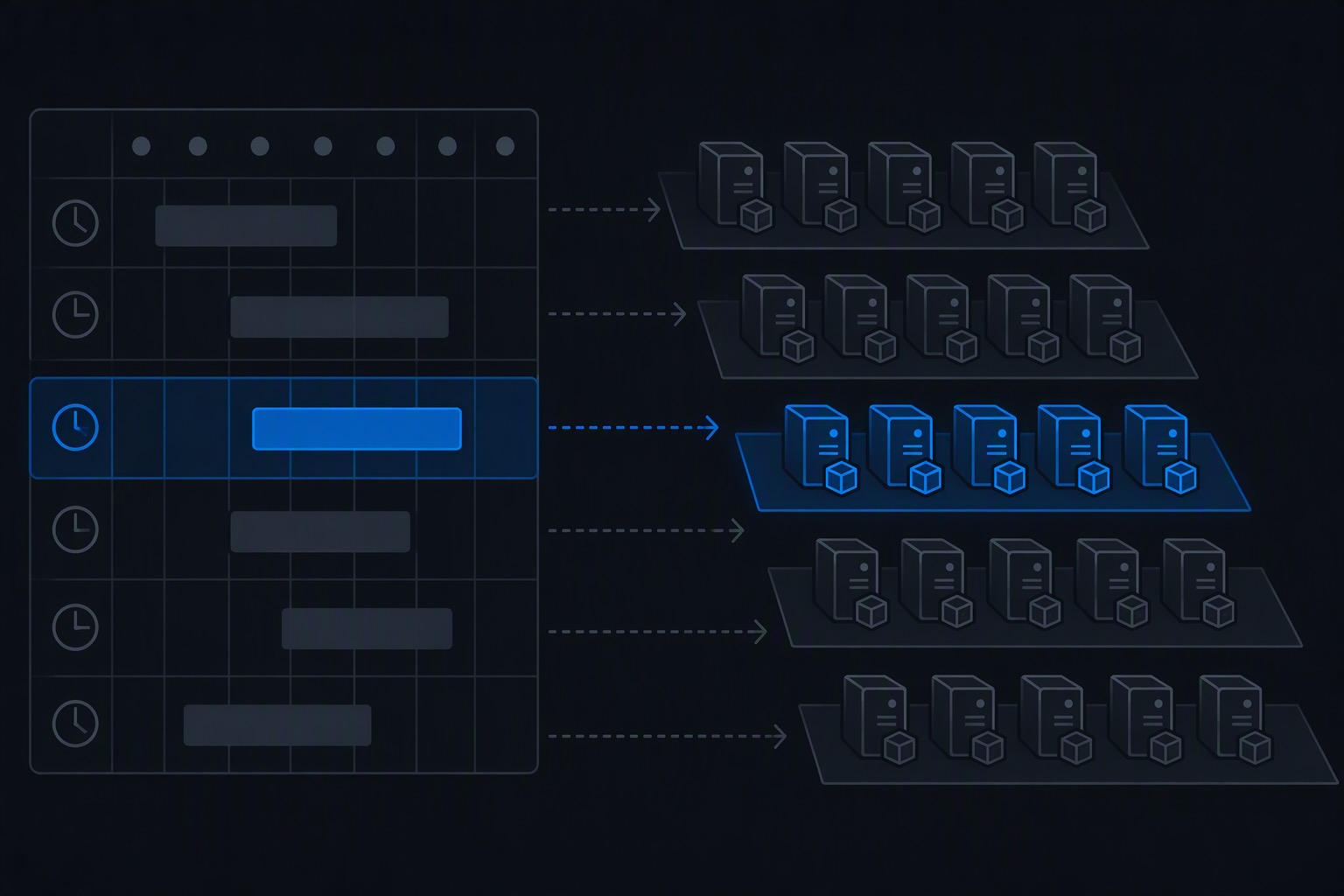
- Deploy in rings: dev/test, then pilot, then production, using separate maintenance configurations or tags for each ring.
- Keep your redundancy (availability zones and sets, load balancers) so patching one node doesn’t cause downtime.
- Schedule maintenance windows around what the business needs, and check that reboot behavior is acceptable.
- Plan for rollback: take snapshots or backups beforehand with Azure Backup, and have health checks before and after.
5. Tie patching to security
- Use Microsoft Defender for Cloud recommendations, such as “System updates should be installed” and “Machines should be configured to periodically check for missing system updates”, together with vulnerability assessment to prioritize fixes.
- Set patch timelines by risk level. For example, critical patches within days and others within your regular monthly cycle.
- Keep application runtimes, container base images and dependencies up to date too, with image scanning in CI/CD and Dependabot.
6. Govern, monitor and report
- Use Azure Resource Graph and Update Manager workbooks to see compliance across all your subscriptions.
- Set up Azure Monitor alerts for failed patch runs and for machines that aren’t compliant.
- Measure the outcomes, such as patch compliance percentage, mean time to patch and failed deployments, and improve the process over time.
7. Treat patching configuration as code
- Define maintenance configurations, policy assignments and schedules in Bicep or Terraform, and deploy them with the landing zone. The Azure Landing Zone accelerators already include Update Manager policies.
Turning the principles into a configuration
Update Manager itself isn’t an Azure resource you deploy — there’s no resource group entry for “Update Manager.” What you actually own and version as IaC are maintenance configurations and the associations that scope them to VMs. That distinction matters: it’s why this belongs in your landing zone’s IaC repo, subject to the same change control and review as everything else, rather than living as a set of portal clicks nobody can reconstruct.
How it works
Architecture
No agent to install. For Azure VMs, Update Manager uses the existing VM guest agent. It installs a patch extension (WindowsPatchExtension or LinuxPatchExtension) automatically when needed.
Hybrid servers (on-premises or other clouds) are covered through Azure Arc, using the Arc Connected Machine agent.
Update sources: The machine pulls updates from its configured source: Windows Update, Microsoft Update or WSUS on Windows, and the configured repositories (apt, yum, zypper) on Linux. Update Manager orchestrates the process; it doesn’t host the updates.
Results are stored in Azure Resource Graph in the patchassessmentresources and patchinstallationresources tables, and kept for 30 days. Portal views, workbooks and alerts read from these tables.
Operations
| Operation | What it does |
|---|---|
| One-time assessment | Checks for missing updates on demand. |
| Periodic assessment | Scans automatically about every 24 hours. |
| One-time update | Installs updates immediately, for example an urgent fix. |
| Scheduled patching | Installs updates in recurring maintenance windows defined by a maintenance configuration. |
| Automatic VM guest patching | Azure applies critical and security patches during off-peak hours, rolling out safely across zones. You don’t control the schedule. |
| Hotpatching | Applies patches without a reboot on Windows Server Azure Edition. |
Main building blocks for automation
- Patch orchestration mode, set on each VM. For scheduled patching it must be Customer Managed Schedules. In the API that means
patchMode = AutomaticByPlatformplusbypassPlatformSafetyChecksOnUserSchedule = true. - Maintenance configuration (
Microsoft.Maintenance/maintenanceConfigurations) defines:- the schedule and duration (from 1 hour 30 minutes up to 3 hours 55 minutes);
- which update classifications to install;
- KB numbers or packages to include or exclude;
- the reboot setting.
- Assignment links machines to a configuration:
- static, where you pick specific VMs; or
- dynamic scope, which filters by subscription, resource group, location, OS type or tags. New VMs that match are picked up automatically.
- Pre and post events, delivered through Event Grid to a Function, Automation runbook or webhook. Typical uses: take snapshots, drain a load balancer, stop services, run health checks.
What happens during a scheduled run
- The window opens and the pre-maintenance event fires.
- The extension runs an assessment, then installs the matching updates.
- It stops starting new updates when too little time is left in the window.
- It reboots according to your setting.
- It writes the results to Resource Graph, and the post-maintenance event fires.
Cost
Free for Azure VMs. Arc-enabled servers are billed per server per month, unless Defender for Servers Plan 2 or another included entitlement covers them.
Setting up patch automation, step by step
Step 1: Plan
- Group machines into rings: Dev, then Pilot, then Prod. Tag each machine, for example
PatchRing=Dev|Pilot|ProdandPatchGroup=Win-Web. - Choose windows relative to Patch Tuesday. For example: Dev on Tuesday + 2 days, Pilot on + 4 days, Prod on + 8 days.
- Decide on classifications. Critical and Security at minimum; add Update Rollups and similar if you want them.
Step 2: Turn on periodic assessment and the prerequisites with Azure Policy
Assign these built-in policies at the management group or subscription level, using DeployIfNotExists or Modify with remediation:
- Configure periodic checking for missing system updates on Azure virtual machines (there is also an Arc version).
- Set prerequisite for Scheduling recurring updates on Azure virtual machines. This sets the patch mode and the bypass flag.
For a single VM you can also set this with the CLI:
az vm update -g rg-app -n vm01 --set \
  osProfile.windowsConfiguration.patchSettings.patchMode=AutomaticByPlatform \
  osProfile.windowsConfiguration.patchSettings.assessmentMode=AutomaticByPlatform \
osProfile.windowsConfiguration.patchSettings.automaticByPlatformSettings.bypassPlatformSafetyChecksOnUserSchedule=trueLinux VMs use linuxConfiguration in place of windowsConfiguration.
Step 3: Create a maintenance configuration for each ring and OS (Bicep)
resource mcProdWin 'Microsoft.Maintenance/maintenanceConfigurations@2023-04-01' = {
  name: 'mc-prod-windows'
  location: 'westeurope'
  properties: {
    maintenanceScope: 'InGuestPatch'
    extensionProperties: { InGuestPatchMode: 'User' }
    maintenanceWindow: {
      startDateTime: '2026-10-01 22:00'
      duration: '03:00'
      timeZone: 'E. Europe Standard Time'
      recurEvery: 'Month Second Tuesday Offset8'   // Patch Tuesday + 8 days
    }
    installPatches: {
      rebootSetting: 'IfRequired'
      windowsParameters: {
        classificationsToInclude: [ 'Critical', 'Security', 'UpdateRollup' ]
        kbNumbersToExclude: []
      }
      linuxParameters: {
        classificationsToInclude: [ 'Critical', 'Security' ]
        packageNameMasksToExclude: []
      }
    }
    visibility: 'Custom'
  }
}Step 4: Assign machines with a dynamic scope (deploy at subscription scope)
targetScope = 'subscription'
resource dyn 'Microsoft.Maintenance/configurationAssignments@2023-04-01' = {
  name: 'assign-prod-windows'
  properties: {
    maintenanceConfigurationId: mcProdWinId
    filter: {
      resourceTypes: [ 'microsoft.compute/virtualmachines', 'microsoft.hybridcompute/machines' ]
      osTypes: [ 'Windows' ]
      locations: []
      resourceGroups: []
      tagSettings: { tags: { PatchRing: [ 'Prod' ] }, filterOperator: 'Any' }
    }
  }
}Any VM tagged PatchRing=Prod is now patched on that schedule without further setup. You can also do this through the built-in policy Schedule recurring updates using Azure Update Manager.
Step 5 (optional): Add pre and post events
In the maintenance configuration, go to Events and subscribe to PreMaintenanceEvent or PostMaintenanceEvent. Send them to an Azure Function, Automation runbook or webhook.
Common uses:
Before: snapshot disks or confirm a backup, remove the VM from its load balancer, stop the app.
After: health check, put the VM back in the load balancer, notify ITSM.
Pre-events fire ahead of the window, so leave the handlers enough time to finish.
Step 6: Monitor and alert
Use the portal: Update Manager → Overview / History, plus the built-in workbooks.
Query Resource Graph for failures, and turn the query into an Azure Monitor alert:
patchinstallationresources
| where type =~ "microsoft.compute/virtualmachines/patchinstallationresults"
| where properties.status in~ ("Failed","CompletedWithWarnings")
| project vm=id, status=properties.status, start=properties.startDateTimeAlso track Defender for Cloud’s “System updates should be installed” recommendation.
Step 7: Operate and improve
Promote patches ring by ring. If Dev or Pilot finds a problem, add the KB or package to kbNumbersToExclude in Prod.
Use one-time updates for zero-day fixes that can’t wait for the schedule.
Keep all of this in IaC and CI/CD. The Azure Landing Zone accelerators already include these policies.
The platform engineering takeaway
CAF’s contribution here is telling you this is a landing zone decision, not something every application team should be free to reinvent — the ownership, scheduling, and enrollment questions get answered once, centrally, and enforced with policy. WAF’s contribution is telling you the design has to satisfy Reliability and Operational Excellence at the same time as Security, not sequentially and not as an afterthought — a fast patch cycle that breaks availability isn’t actually a win. Azure Update Manager, configured as IaC with dynamic scoping, capacity-aware waves, and policy-enforced enrollment, is what turns both sets of principles into something a platform team can actually operate, and prove compliance against, rather than something everyone agrees with in the abstract.
Discover more from ksharp
Subscribe to get the latest posts sent to your email.